
In the last article we saw an introduction to AWR, and in this one we’ll get to know a bit about Statspack.
Oracle Statspack is similar to AWR: it takes snapshots of performance statistics every hour on the hour and stores them in the objects of the PERFSTAT schema. Statspack was introduced in Oracle Database version 8.1.6 and today we only use it when we don’t have the license required to use the AWR features. So if you manage Standard Edition environments, forget about the AWR and ASH reports, views and charts and get used to Statspack.
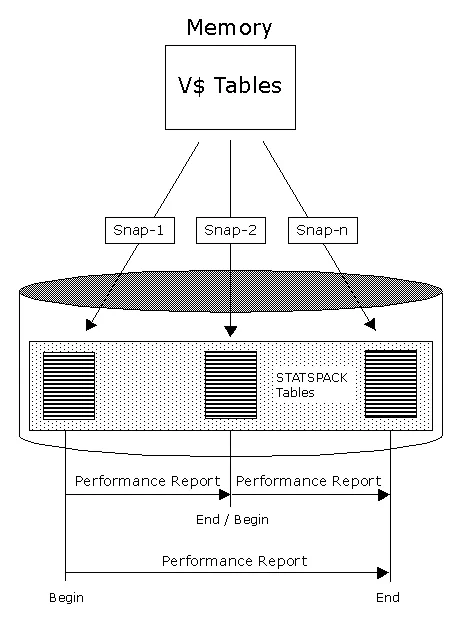
Source: http://www.akadia.com/img/ora\_statspack\_tables.gif

By default Statspack is not installed, so we first need to install it and configure it to take snapshots. You can find the detailed documentation for the utility in $ORACLE_HOME/rdbms/admin/spdoc.txt, and there is also this unofficial documentation: SP Survival Guide. The procedure I present here works from Oracle 8i through 12c (pay attention to the detail* when you’re creating SP in the CDB).
Before installing Statspack, I always like to create a dedicated tablespace for it:
SQL> create tablespace PERFSTAT datafile '+DATA' size 50M autoextend on next 50M maxsize 5G;

Tablespace created.
*If you, like me, are running the Statspack structure creation script in the CDB of an Oracle Database 12c, set the “_oracle_script” parameter to TRUE in your session to avoid the error shown below, related to the name of the common user PERFSTAT.
... Creating PERFSTAT user
create user perfstat
            *
ERROR at line 1:
ORA-65096: invalid common user or role name
As the SYS user, run the following scripts:
SQL> alter session set "_oracle_script"=true;

Session altered.
SQL> @?/rdbms/admin/spcreate.sql
Choose the PERFSTAT user's password
-----------------------------------
Not specifying a password will result in the installation FAILING
Enter value for perfstat_password: oracle
oracle
Choose the Default tablespace for the PERFSTAT user
---------------------------------------------------
Below is the list of online tablespaces in this database which can
store user data. Specifying the SYSTEM tablespace for the user's
default tablespace will result in the installation FAILING, as
using SYSTEM for performance data is not supported.
Choose the PERFSTAT users's default tablespace. This is the tablespace
in which the STATSPACK tables and indexes will be created.
TABLESPACE_NAME CONTENTS STATSPACK DEFAULT TABLESPACE
------------------------------ --------- ----------------------------
PERFSTAT PERMANENT
SYSAUX PERMANENT *
USERS PERMANENT
Pressing <return> will result in STATSPACK's recommended default
tablespace (identified by *) being used.
Enter value for default_tablespace: PERFSTAT
Using tablespace PERFSTAT as PERFSTAT default tablespace.
Choose the Temporary tablespace for the PERFSTAT user
-----------------------------------------------------
Below is the list of online tablespaces in this database which can
store temporary data (e.g. for sort workareas). Specifying the SYSTEM
tablespace for the user's temporary tablespace will result in the
installation FAILING, as using SYSTEM for workareas is not supported.
Choose the PERFSTAT user's Temporary tablespace.
TABLESPACE_NAME CONTENTS DB DEFAULT TEMP TABLESPACE
------------------------------ --------- --------------------------
TEMP TEMPORARY *
Pressing <return> will result in the database's default Temporary
tablespace (identified by *) being used.
Enter value for temporary_tablespace:
Using tablespace TEMP as PERFSTAT temporary tablespace.
... Creating PERFSTAT user
... Installing required packages
... Creating views
... Granting privileges
NOTE:
SPCUSR complete. Please check spcusr.lis for any errors.
.
.
. Muitas linhas serão criadas, então resumi um pouco o resultado...
.
.
1 row created.
Commit complete.
Synonym created.
Synonym created.
NOTE:
SPCTAB complete. Please check spctab.lis for any errors.
SQL> -- Create the statistics Package
.
.
.
.
Creating Package STATSPACK...
Package created.
No errors.
Creating Package Body STATSPACK...
Package body created.
No errors.
NOTE:
SPCPKG complete. Please check spcpkg.lis for any errors.Make sure there were no errors in the process by checking the files spcpkg.lis, spctab.lis and spcusr.lis.
Once Statspack is installed, I recommend that you gather statistics on the PERFSTAT schema, otherwise you may have problems running some packages that query/write to SP tables:
SQL> exec dbms_stats.gather_schema_stats('PERFSTAT');

PL/SQL procedure successfully completed.
Connect as the PERFSTAT user and take an initial snapshot:
[oracle@loredata-srv ~]$ sqlplus perfstat/oracle

SQL*Plus: Release 12.1.0.2.0 Production on Wed Jul 20 13:00:29 2016

Copyright (c) 1982, 2014, Oracle.  All rights reserved.

Connected to:
Oracle Database 12c Enterprise Edition Release 12.1.0.2.0 - 64bit Production
With the Partitioning, Automatic Storage Management, OLAP, Advanced Analytics,
Real Application Testing and Unified Auditing options

SQL> exec statspack.snap;

PL/SQL procedure successfully completed.
Then create the automatic collection job:
SQL> @?/rdbms/admin/spauto.sql

PL/SQL procedure successfully completed.

Job number for automated statistics collection for this instance
~~~~~~~~~~~~~~~~~~~~~~~~~~~~~~~~~~~~~~~~~~~~~~~~~~~~~~~~~~~~~~~~
Note that this job number is needed when modifying or removing
the job:

     JOBNO
----------
	 1

Job queue process
~~~~~~~~~~~~~~~~~
Below is the current setting of the job_queue_processes init.ora
parameter - the value for this parameter must be greater
than 0 to use automatic statistics gathering:

NAME				     TYPE	 VALUE
------------------------------------ ----------- ------------------------------
job_queue_processes		     integer	 1000

Next scheduled run
~~~~~~~~~~~~~~~~~~
The next scheduled run for this job is:

       JOB NEXT_DATE NEXT_SEC
---------- --------- --------
	 1 20-JUL-16 14:00:00
Check that the job was actually scheduled:
SQL> alter session set nls_date_format='dd/mm/yyyy hh24:mi:ss';

Session altered.

SQL> select job, what, LAST_DATE, NEXT_DATE, TOTAL_TIME, BROKEN, FAILURES from dba_jobs where SCHEMA_USER='PERFSTAT';

       JOB WHAT 					      LAST_DATE 	  NEXT_DATE	      TOTAL_TIME B   FAILURES
---------- -------------------------------------------------- ------------------- ------------------- ---------- - ----------
	 1 statspack.snap;							  20/07/2016 14:00:00	       0 N
Unlike the AWR report, the Statspack report has less detailed information, but it’s better than nothing, right? The Statspack report can also only be extracted in .txt format, but it’s easy to read.
I’ll take one more snapshot to have the 2 needed to generate a report:
SQL> exec statspack.snap;

PL/SQL procedure successfully completed.
We can query the snapshots in the stats$snapshot view:
SQL>  select name, snap_id, to_char(snap_time, 'DD/MM/YYYY HH24:MI:SS') "Snapshot Time" from stats$snapshot,v$database;

NAME	     SNAP_ID Snapshot Time
--------- ---------- -------------------
LOREDB		   2 20/07/2016 13:44:18
LOREDB		   1 20/07/2016 13:01:16
To generate the report, run the script:
SQL> @?/rdbms/admin/spreport.sql

Current Instance
~~~~~~~~~~~~~~~~

   DB Id    DB Name	 Inst Num Instance
----------- ------------ -------- ------------
 1937271711 LOREDB		1 loredb

Instances in this Statspack schema
~~~~~~~~~~~~~~~~~~~~~~~~~~~~~~~~~~

   DB Id    Inst Num DB Name	  Instance     Host
----------- -------- ------------ ------------ ------------
 1937271711	   1 LOREDB	  loredb       loredata-srv
					       .localdomain

Using 1937271711 for database Id
Using	       1 for instance number

Specify the number of days of snapshots to choose from
~~~~~~~~~~~~~~~~~~~~~~~~~~~~~~~~~~~~~~~~~~~~~~~~~~~~~~
Entering the number of days (n) will result in the most recent
(n) days of snapshots being listed.  Pressing <return> without
specifying a number lists all completed snapshots.

Listing all Completed Snapshots

						       Snap
Instance     DB Name	    Snap Id   Snap Started    Level Comment
------------ ------------ --------- ----------------- ----- --------------------
loredb	     LOREDB		  1 20 Jul 2016 13:01	  5
				  2 20 Jul 2016 13:44	  5

Specify the Begin and End Snapshot Ids
~~~~~~~~~~~~~~~~~~~~~~~~~~~~~~~~~~~~~~
Enter value for begin_snap: 1
Begin Snapshot Id specified: 1

Enter value for end_snap: 2
End   Snapshot Id specified: 2

Specify the Report Name
~~~~~~~~~~~~~~~~~~~~~~~
The default report file name is sp_1_2.  To use this name,
press <return> to continue, otherwise enter an alternative.

Enter value for report_name: statspack_rpt.txt

Using the report name statspack_rpt.txt

STATSPACK report for

--RESULTADO DO RELATORIO........
.
.
.
End of Report ( statspack_rpt.txt )
The generated file can be opened with any text editor.
That’s all for today, folks. I hope this article helps in some way in your day-to-day.
Soon I’ll write an article about how to maintain Statspack: removing snapshots, creating automatic jobs to purge them, and how to remove Statspack completely.
Regards, and see you next time,
Franky
Comments