
Hi everyone, in this post we’ll see how to import the .iso file that holds the Oracle Linux 7.5 image into one of the repositories previously created in the Oracle VM infrastructure.
The repositories of Lore Data’s Oracle VM infrastructure are on the server jarvis.loredata.com.br, which is the Oracle VM Server, so that is where the files will be stored.
I downloaded Oracle Enterprise Linux 7.5 on the server vision.loredata.com.br, which is the Oracle VM Manager server.
I know 2 methods to make these files available in the repository so they can be used later to create a VM.
Method 1: Copying the .iso to the repository via SCP
Copy the file to the repository directory on the server jarvis.loredata.com.br. All it takes is an scp from one server to the other:
[root@vision ~]# cd Downloads/
[root@vision Downloads]# pwd
/root/Downloads
[root@vision Downloads]# ls -lh
total 4.2G
-rw-r--r--. 1 oracle dba 4.2G Oct 29 20:07 OEL7.5.iso
[root@vision Downloads]# scp OEL7.5.iso root@jarvis:/OVS/Repositories/0004fb0000030000b215dd5e2104fd03/ISOs/
root@jarvis's password:
OEL7.5.iso                                                                                              100% 4235MB 104.5MB/s   00:40
[root@vision Downloads]#
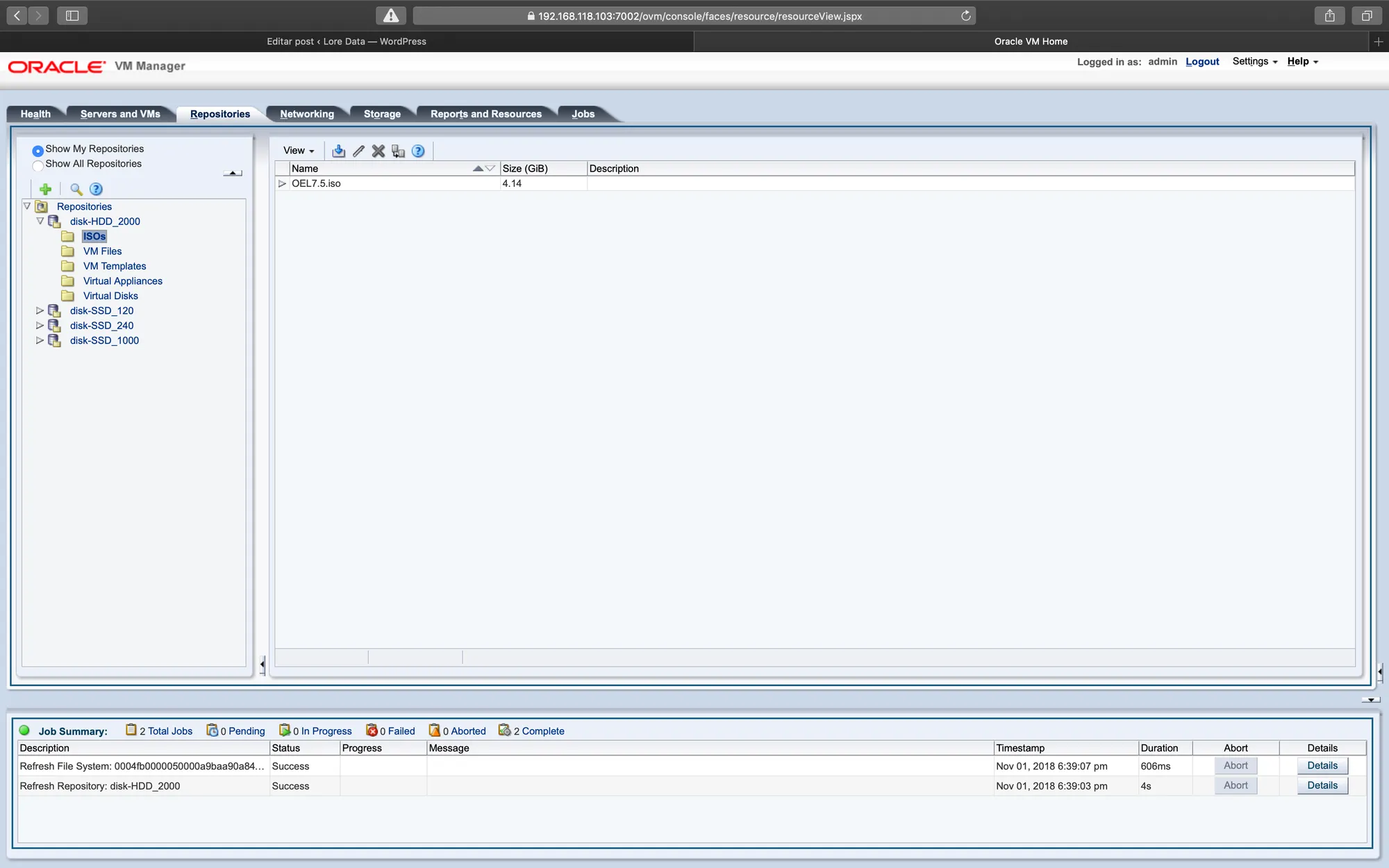
See that right after refreshing the repository the .iso file shows up:
Method 2: Importing the .iso into the repository via the Oracle VM Manager console
I left this one as the second option because it is more annoying to do. In this method the file has to be available via HTTP, HTTPS or FTP at the source so that we can import it. Oracle VM Manager only accepts importing files through one of these 3 protocols.
In my opinion the easiest way to do this is to instantly start an HTTP server using a Python module. To do that, in the directory where the file is, run the following Python module:
[root@vision Downloads]# pwd
/root/Downloads
[root@vision Downloads]# python -m SimpleHTTPServer 8020
Serving HTTP on 0.0.0.0 port 8020 ...
If you have the firewall active, temporarily open port 8020, or whichever one you are using:
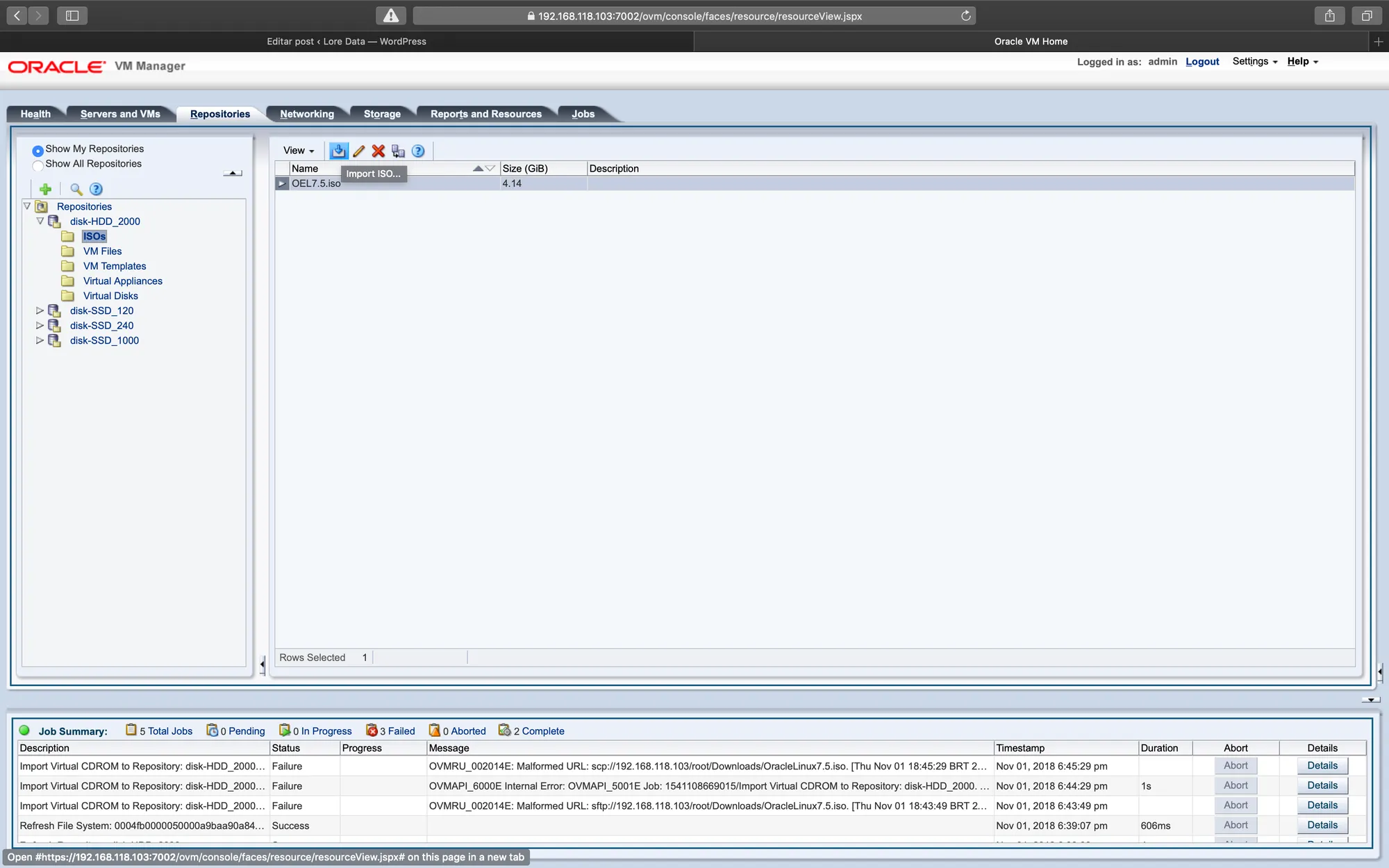
[root@vision ~]# iptables -I INPUT -p tcp -m tcp --dport 8020 -j ACCEPTNow, in the Oracle VM Manager console, in the “Repositories” tab, choose the repository and click “Import ISO”:
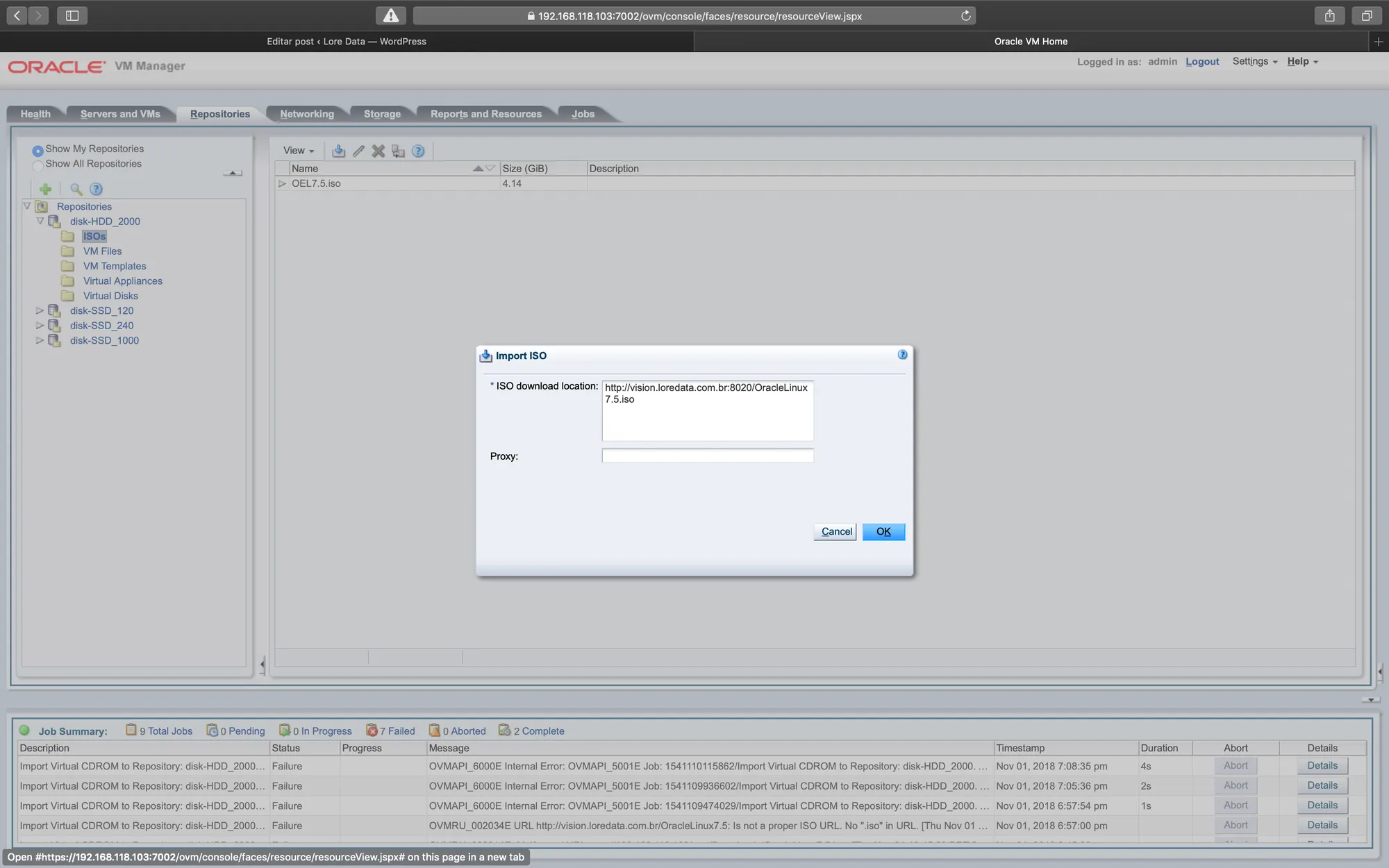
Enter the URL where the file is stored and click “OK”:
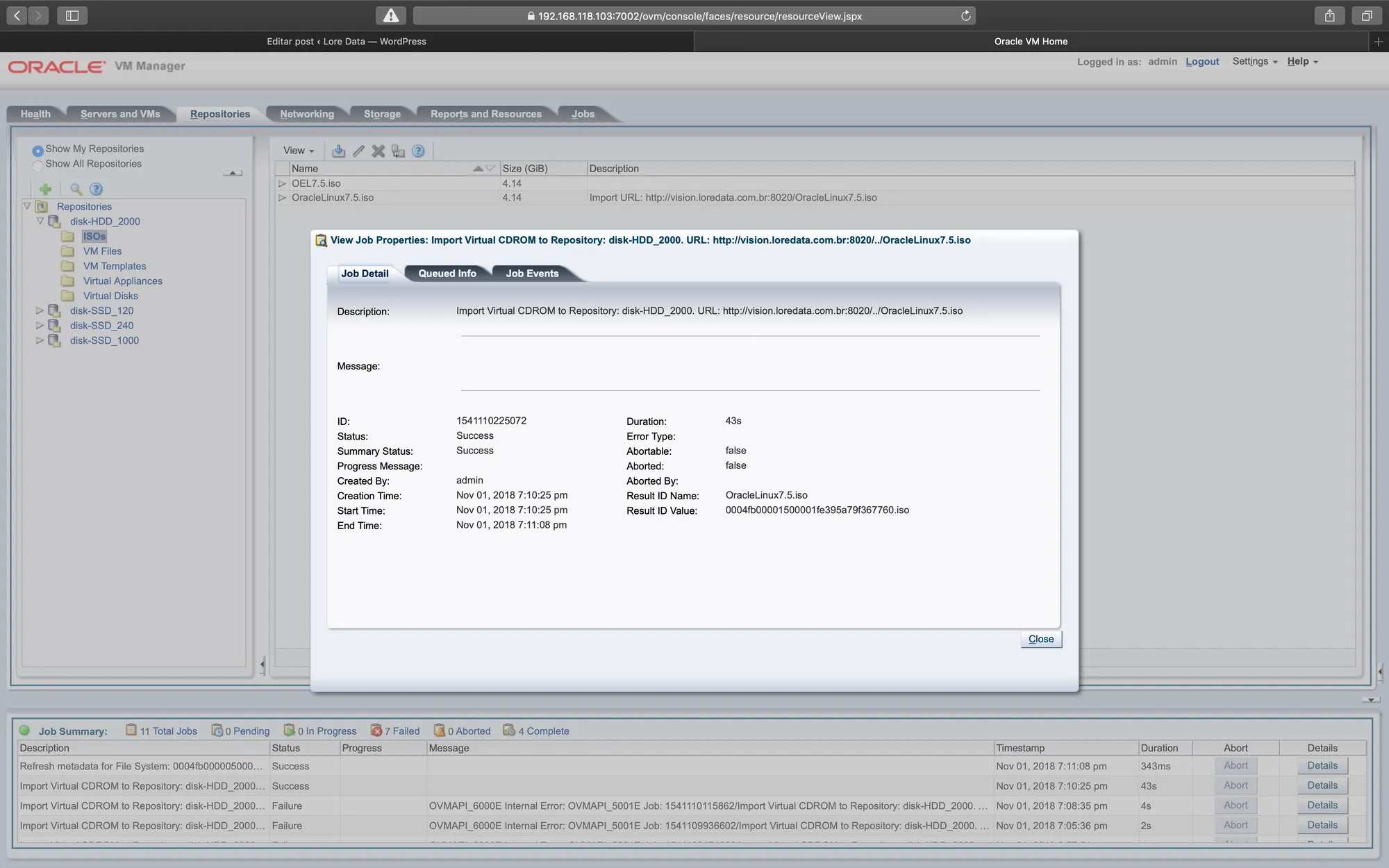
Import done successfully. Click “Details” on the import job:
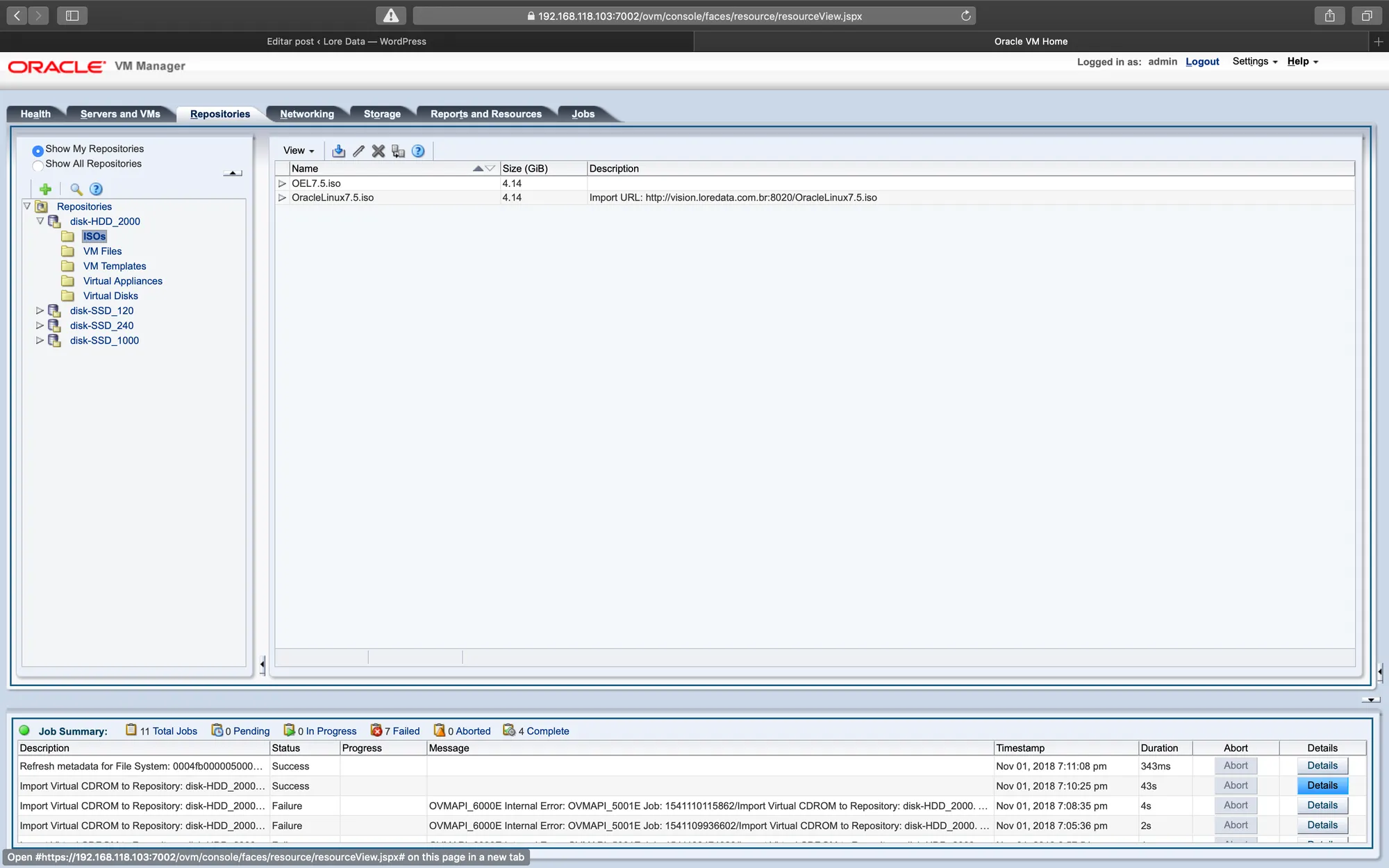
See the details of the import process:
To stop the Python HTTP server module just press control+c:
[root@vision Downloads]# python -m SimpleHTTPServer 8020
Serving HTTP on 0.0.0.0 port 8020 ...
192.168.118.101 - - [01/Nov/2018 19:10:25] "GET /OracleLinux7.5.iso HTTP/1.1" 200 -
^CTraceback (most recent call last):
  File "/usr/lib64/python2.7/runpy.py", line 162, in _run_module_as_main
    "__main__", fname, loader, pkg_name)
  File "/usr/lib64/python2.7/runpy.py", line 72, in _run_code
    exec code in run_globals
  File "/usr/lib64/python2.7/SimpleHTTPServer.py", line 220, in <module>
    test()
  File "/usr/lib64/python2.7/SimpleHTTPServer.py", line 216, in test
    BaseHTTPServer.test(HandlerClass, ServerClass)
  File "/usr/lib64/python2.7/BaseHTTPServer.py", line 599, in test
    httpd.serve_forever()
  File "/usr/lib64/python2.7/SocketServer.py", line 236, in serve_forever
    poll_interval)
  File "/usr/lib64/python2.7/SocketServer.py", line 155, in _eintr_retry
    return func(*args)
KeyboardInterrupt
[root@vision Downloads]#
That’s what I had to show today. Remember to put the firewall settings back to what they were before the change.
I hope you liked it. Cheers and see you soon.
Franky
Comments