
Hi everyone, I recently used VBoxManage because I needed to run some performance tests at home in my lab, but my test computer has SSD disks, so I used this cool VirtualBox feature, an I/O throughput limiter. I needed to simulate slow I/O on my virtual server so I could run some tests on Oracle Database.
Let’s see how this feature works…
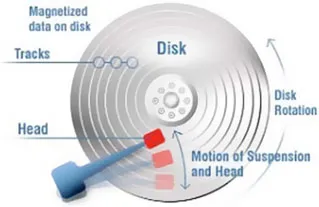
VirtualBox I/O Throughput with VBoxManage and bandwidthgroups
To use this feature you need the VBoxManage command-line utility on Linux/OSX or VBoxManage.exe (C:\Program Files\Oracle\VirtualBox>VBoxManage.exe) on Windows. In my case the operating system is OSX, but the commands and parameters are the same.
Once I located the utility, I list the VMs that were created in VirtualBox:
Frankys-MBP:~ frankyweber$ /Applications/VirtualBox.app/Contents/MacOS/VBoxManage list vms
"testVM" {7e7c33a1-56ac-4136-b674-6cd2a9ea7306}
In this test I’ll work with the VM testVM, which has two virtual disks: testVM.vdi and testVM_SSD.vdi.
So let’s list the virtual disks:
Frankys-MBP:~ frankyweber$ /Applications/VirtualBox.app/Contents/MacOS/VBoxManage showvminfo "testVM" |grep SATA
Storage Controller Name (1):            SATA
SATA (0, 0): /Users/frankyweber/VirtualBox VMs/testVM/testVM.vdi (UUID: 9a8e209e-6c23-4e1c-a950-6837742b51f0)
SATA (1, 0): /Users/frankyweber/VirtualBox VMs/testVM/testVM_SSD.vdi (UUID: 7359bc02-c6be-4039-82f9-470a67c3b147)
Here is another command to list the disks, but this one lists all the disks of all the VMs. In my case I only have testVM, so only its disks show up:
Frankys-MBP:~ frankyweber$ /Applications/VirtualBox.app/Contents/MacOS/VBoxManage list hdds
UUID:           9a8e209e-6c23-4e1c-a950-6837742b51f0
Parent UUID:    base
State:          created
Type:           normal (base)
Location:       /Users/frankyweber/VirtualBox VMs/testVM/testVM.vdi
Storage format: VDI
Capacity:       12288 MBytes
Encryption:     disabled

UUID:           7359bc02-c6be-4039-82f9-470a67c3b147
Parent UUID:    base
State:          created
Type:           normal (base)
Location:       /Users/frankyweber/VirtualBox VMs/testVM/testVM_SSD.vdi
Storage format: VDI
Capacity:       12288 MBytes
Encryption:     disabled
Now that we have the disks, let’s create a bandwidthgroup and set its throughput:
Frankys-MBP:~ frankyweber$ /Applications/VirtualBox.app/Contents/MacOS/VBoxManage bandwidthctl "testVM" add BWG_20M --type disk --limit 20MNotice that I gave the name of the VM, then a name for the bandwidthgroup, the device type (it can be disk or network) and the bandwidth limit (throughput).
Let’s check that everything is right by listing the bandwidthgroup:
Frankys-MBP:~ frankyweber$ /Applications/VirtualBox.app/Contents/MacOS/VBoxManage bandwidthctl "testVM" list

Name: 'BWG_20M', Type: Disk, Limit: 20 Mbytes/sec
Now let’s add a disk to this bandwidthgroup:
Frankys-MBP:~ frankyweber$ /Applications/VirtualBox.app/Contents/MacOS/VBoxManage storageattach "testVM" --storagectl "SATA" --port 0 --device 0 --type HDD --medium "9a8e209e-6c23-4e1c-a950-6837742b51f0" --bandwidthgroup BWG_20MTo add a disk to a bandwidthgroup I had to provide the name of the VM, the SATA controller, the port and the device to be added, the type HDD, the UUID of the disk and finally the bandwidthgroup.
Let’s check that the bandwidthgroup is set for our VM:
Frankys-MBP:~ frankyweber$ /Applications/VirtualBox.app/Contents/MacOS/VBoxManage showvminfo "testVM"
Name:            testVM
Groups:          /
Guest OS:        Oracle (64-bit)
UUID:            7e7c33a1-56ac-4136-b674-6cd2a9ea7306
Config file:     /Users/frankyweber/VirtualBox VMs/testVM/testVM.vbox
Snapshot folder: /Users/frankyweber/VirtualBox VMs/testVM/Snapshots
Log folder:      /Users/frankyweber/VirtualBox VMs/testVM/Logs
Hardware UUID:   7e7c33a1-56ac-4136-b674-6cd2a9ea7306
Memory size:     1024MB
Page Fusion:     off
VRAM size:       16MB
CPU exec cap:    100%
HPET:            off
Chipset:         piix3
Firmware:        BIOS
Number of CPUs:  1
PAE:             on
Long Mode:       on
Triple Fault Reset: off
APIC:            on
X2APIC:          on
CPUID Portability Level: 0
CPUID overrides: None
Boot menu mode:  message and menu
Boot Device (1): Floppy
Boot Device (2): DVD
Boot Device (3): HardDisk
Boot Device (4): Not Assigned
ACPI:            on
IOAPIC:          on
BIOS APIC mode:  APIC
Time offset:     0ms
RTC:             UTC
Hardw. virt.ext: on
Nested Paging:   on
Large Pages:     on
VT-x VPID:       on
VT-x unr. exec.: on
Paravirt. Provider: Default
Effective Paravirt. Provider: KVM
State:           powered off (since 2017-07-05T01:44:47.455000000)
Monitor count:   1
3D Acceleration: off
2D Video Acceleration: off
Teleporter Enabled: off
Teleporter Port: 0
Teleporter Address:
Teleporter Password:
Tracing Enabled: off
Allow Tracing to Access VM: off
Tracing Configuration:
Autostart Enabled: off
Autostart Delay: 0
Default Frontend:
Storage Controller Name (0):            IDE
Storage Controller Type (0):            PIIX4
Storage Controller Instance Number (0): 0
Storage Controller Max Port Count (0):  2
Storage Controller Port Count (0):      2
Storage Controller Bootable (0):        on
Storage Controller Name (1):            SATA
Storage Controller Type (1):            IntelAhci
Storage Controller Instance Number (1): 0
Storage Controller Max Port Count (1):  30
Storage Controller Port Count (1):      2
Storage Controller Bootable (1):        on
IDE (1, 0): Empty
SATA (0, 0): /Users/frankyweber/VirtualBox VMs/testVM/testVM.vdi (UUID: 9a8e209e-6c23-4e1c-a950-6837742b51f0)
SATA (1, 0): /Users/frankyweber/VirtualBox VMs/testVM/testVM_SSD.vdi (UUID: 7359bc02-c6be-4039-82f9-470a67c3b147)
NIC 1:           MAC: 080027ED07AB, Attachment: NAT, Cable connected: on, Trace: off (file: none), Type: 82540EM, Reported speed: 0 Mbps, Boot priority: 0, Promisc Policy: deny, Bandwidth group: none
NIC 1 Settings:  MTU: 0, Socket (send: 64, receive: 64), TCP Window (send:64, receive: 64)
NIC 2:           disabled
NIC 3:           disabled
NIC 4:           disabled
NIC 5:           disabled
NIC 6:           disabled
NIC 7:           disabled
NIC 8:           disabled
Pointing Device: PS/2 Mouse
Keyboard Device: PS/2 Keyboard
UART 1:          disabled
UART 2:          disabled
UART 3:          disabled
UART 4:          disabled
LPT 1:           disabled
LPT 2:           disabled
Audio:           enabled (Driver: CoreAudio, Controller: AC97, Codec: AD1980)
Clipboard Mode:  disabled
Drag and drop Mode: disabled
VRDE:            disabled
USB:             enabled
EHCI:            disabled
XHCI:            disabled

USB Device Filters:

<none>

Bandwidth groups:

Name: 'BWG_20M', Type: Disk, Limit: 20 Mbytes/sec

Shared folders:  <none>

Video capturing:    not active
Capture screens:    0
Capture file:       /Users/frankyweber/VirtualBox VMs/testVM/testVM.webm
Capture dimensions: 1024x768
Capture rate:       512 kbps
Capture FPS:        25

Guest:

Configured memory balloon size:      0 MB
Right here at the end you can see that the bandwidthgroup is present in this VM.
Let’s create another bandwidthgroup with 100MB of bandwidth:
Frankys-MBP:~ frankyweber$ /Applications/VirtualBox.app/Contents/MacOS/VBoxManage bandwidthctl "testVM" add BWG_100M --type disk --limit 100MWith that done, let’s add the disk “testVM_SSD.vdi” to this bandwidthgroup:
Frankys-MBP:~ frankyweber$ /Applications/VirtualBox.app/Contents/MacOS/VBoxManage storageattach "testVM" --storagectl "SATA" --port 1 --device 0 --type HDD --medium "7359bc02-c6be-4039-82f9-470a67c3b147" --bandwidthgroup BWG_100MWe list the VM again to check:
Frankys-MBP:~ frankyweber$ /Applications/VirtualBox.app/Contents/MacOS/VBoxManage showvminfo "testVM"
Name:            testVM
Groups:          /
Guest OS:        Oracle (64-bit)
UUID:            7e7c33a1-56ac-4136-b674-6cd2a9ea7306
Config file:     /Users/frankyweber/VirtualBox VMs/testVM/testVM.vbox
Snapshot folder: /Users/frankyweber/VirtualBox VMs/testVM/Snapshots
Log folder:      /Users/frankyweber/VirtualBox VMs/testVM/Logs
Hardware UUID:   7e7c33a1-56ac-4136-b674-6cd2a9ea7306
Memory size:     1024MB
Page Fusion:     off
VRAM size:       16MB
CPU exec cap:    100%
HPET:            off
Chipset:         piix3
Firmware:        BIOS
Number of CPUs:  1
PAE:             on
Long Mode:       on
Triple Fault Reset: off
APIC:            on
X2APIC:          on
CPUID Portability Level: 0
CPUID overrides: None
Boot menu mode:  message and menu
Boot Device (1): Floppy
Boot Device (2): DVD
Boot Device (3): HardDisk
Boot Device (4): Not Assigned
ACPI:            on
IOAPIC:          on
BIOS APIC mode:  APIC
Time offset:     0ms
RTC:             UTC
Hardw. virt.ext: on
Nested Paging:   on
Large Pages:     on
VT-x VPID:       on
VT-x unr. exec.: on
Paravirt. Provider: Default
Effective Paravirt. Provider: KVM
State:           powered off (since 2017-07-05T01:44:47.455000000)
Monitor count:   1
3D Acceleration: off
2D Video Acceleration: off
Teleporter Enabled: off
Teleporter Port: 0
Teleporter Address:
Teleporter Password:
Tracing Enabled: off
Allow Tracing to Access VM: off
Tracing Configuration:
Autostart Enabled: off
Autostart Delay: 0
Default Frontend:
Storage Controller Name (0):            IDE
Storage Controller Type (0):            PIIX4
Storage Controller Instance Number (0): 0
Storage Controller Max Port Count (0):  2
Storage Controller Port Count (0):      2
Storage Controller Bootable (0):        on
Storage Controller Name (1):            SATA
Storage Controller Type (1):            IntelAhci
Storage Controller Instance Number (1): 0
Storage Controller Max Port Count (1):  30
Storage Controller Port Count (1):      2
Storage Controller Bootable (1):        on
IDE (1, 0): Empty
SATA (0, 0): /Users/frankyweber/VirtualBox VMs/testVM/testVM.vdi (UUID: 9a8e209e-6c23-4e1c-a950-6837742b51f0)
SATA (1, 0): /Users/frankyweber/VirtualBox VMs/testVM/testVM_SSD.vdi (UUID: 7359bc02-c6be-4039-82f9-470a67c3b147)
NIC 1:           MAC: 080027ED07AB, Attachment: NAT, Cable connected: on, Trace: off (file: none), Type: 82540EM, Reported speed: 0 Mbps, Boot priority: 0, Promisc Policy: deny, Bandwidth group: none
NIC 1 Settings:  MTU: 0, Socket (send: 64, receive: 64), TCP Window (send:64, receive: 64)
NIC 2:           disabled
NIC 3:           disabled
NIC 4:           disabled
NIC 5:           disabled
NIC 6:           disabled
NIC 7:           disabled
NIC 8:           disabled
Pointing Device: PS/2 Mouse
Keyboard Device: PS/2 Keyboard
UART 1:          disabled
UART 2:          disabled
UART 3:          disabled
UART 4:          disabled
LPT 1:           disabled
LPT 2:           disabled
Audio:           enabled (Driver: CoreAudio, Controller: AC97, Codec: AD1980)
Clipboard Mode:  disabled
Drag and drop Mode: disabled
VRDE:            disabled
USB:             enabled
EHCI:            disabled
XHCI:            disabled

USB Device Filters:

<none>

Bandwidth groups:

Name: 'BWG_20M', Type: Disk, Limit: 20 Mbytes/sec
Name: 'BWG_100M', Type: Disk, Limit: 100 Mbytes/sec

Shared folders:  <none>

Video capturing:    not active
Capture screens:    0
Capture file:       /Users/frankyweber/VirtualBox VMs/testVM/testVM.webm
Capture dimensions: 1024x768
Capture rate:       512 kbps
Capture FPS:        25

Guest:

Configured memory balloon size:      0 MB
I couldn’t find a way to list the disks of each bandwidthgroup. I believe it’s not possible in the current version of VirtualBox, since I dug through the documentation and didn’t find it.
After that, all that’s left is to start your VM and test. You can keep changing the throughput of the disks while the VM is running with the following command:
Frankys-MBP:~ frankyweber$ /Applications/VirtualBox.app/Contents/MacOS/VBoxManage bandwidthctl "testVM" set BWG_20M --limit 50MTo check the change:
Frankys-MBP:~ frankyweber$ /Applications/VirtualBox.app/Contents/MacOS/VBoxManage bandwidthctl "testVM" list

Name: 'BWG_20M', Type: Disk, Limit: 50 Mbytes/sec
Name: 'BWG_100M', Type: Disk, Limit: 100 Mbytes/sec
That’s it, folks. I hope you can run some cool tests with this VirtualBox feature.
Big hug and see you next time,
Franky
References
Muito bom Franky, esse artigo vai ser muito util pra muita gente, inclusive pra mim.
Vamos fazer esse ssd chorar.uai.