
Targets. The goal of this article is very brief: I’ll show how to add a new target in Oracle Enterprise Manager Cloud Control 13c.
Since I installed this environment today to run some tests, I decided to write this article during the process. Unfortunately I didn’t document the installation process, because it would take too long to explain everything here, but an article by my friend José Mario Barduchi about it should be out soon on OTN, so let’s wait a few days.
Update: Oracle Enterprise Manager Cloud Control 13c Installation Guide
I’ll add the ASM instance and the repository database of my own OEM server.
It’s a very simple task. So let’s see how to do it…
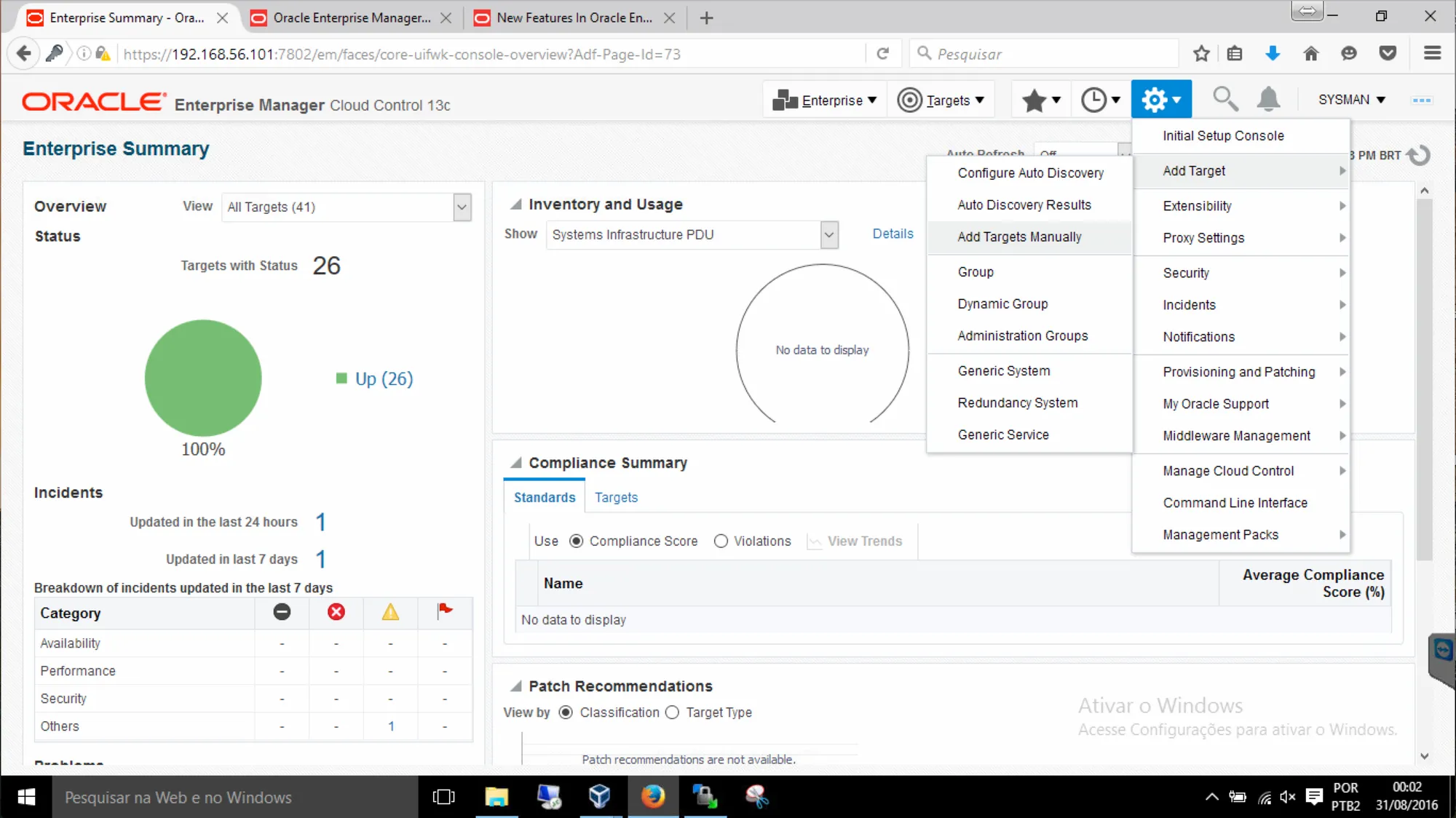
Go to the Setup > Add Target > Add Targets Manually menu.
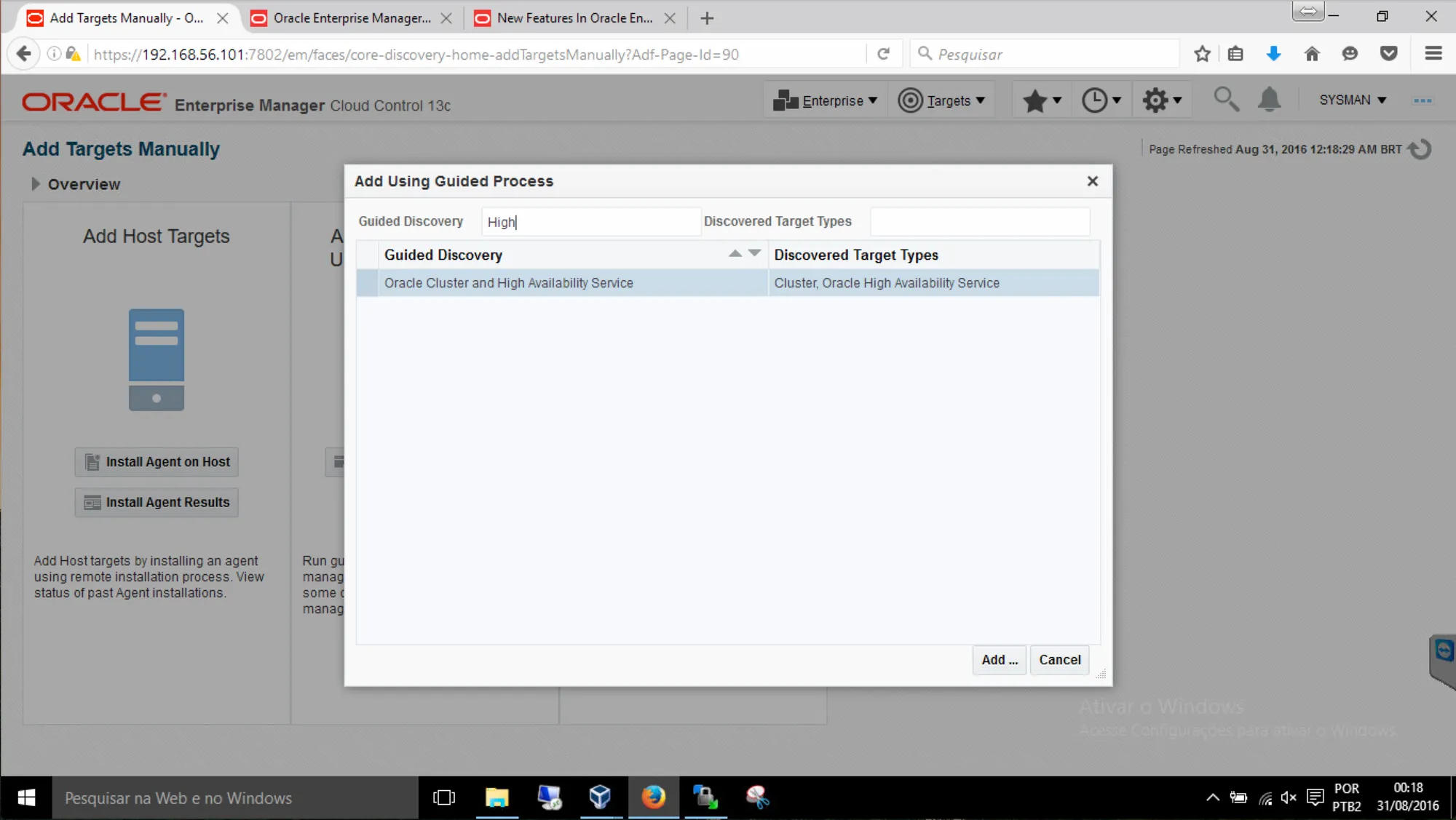
In my case I already have a Host with an Agent installed, so I’ll select the “Add Using Guided Process” option.
I’ll filter using the string “High” to select the type compatible with my Oracle Restart environment and click Add.
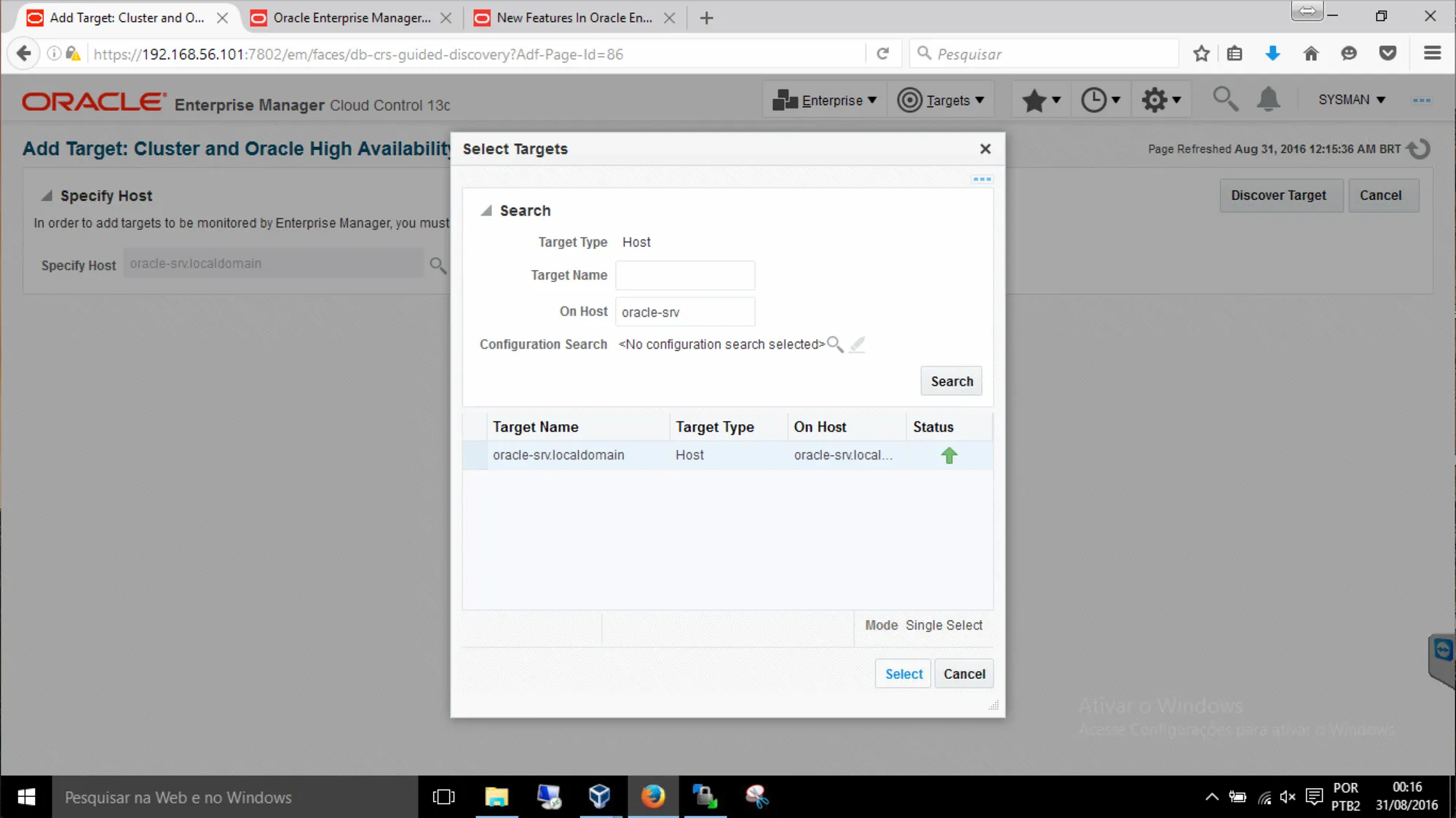
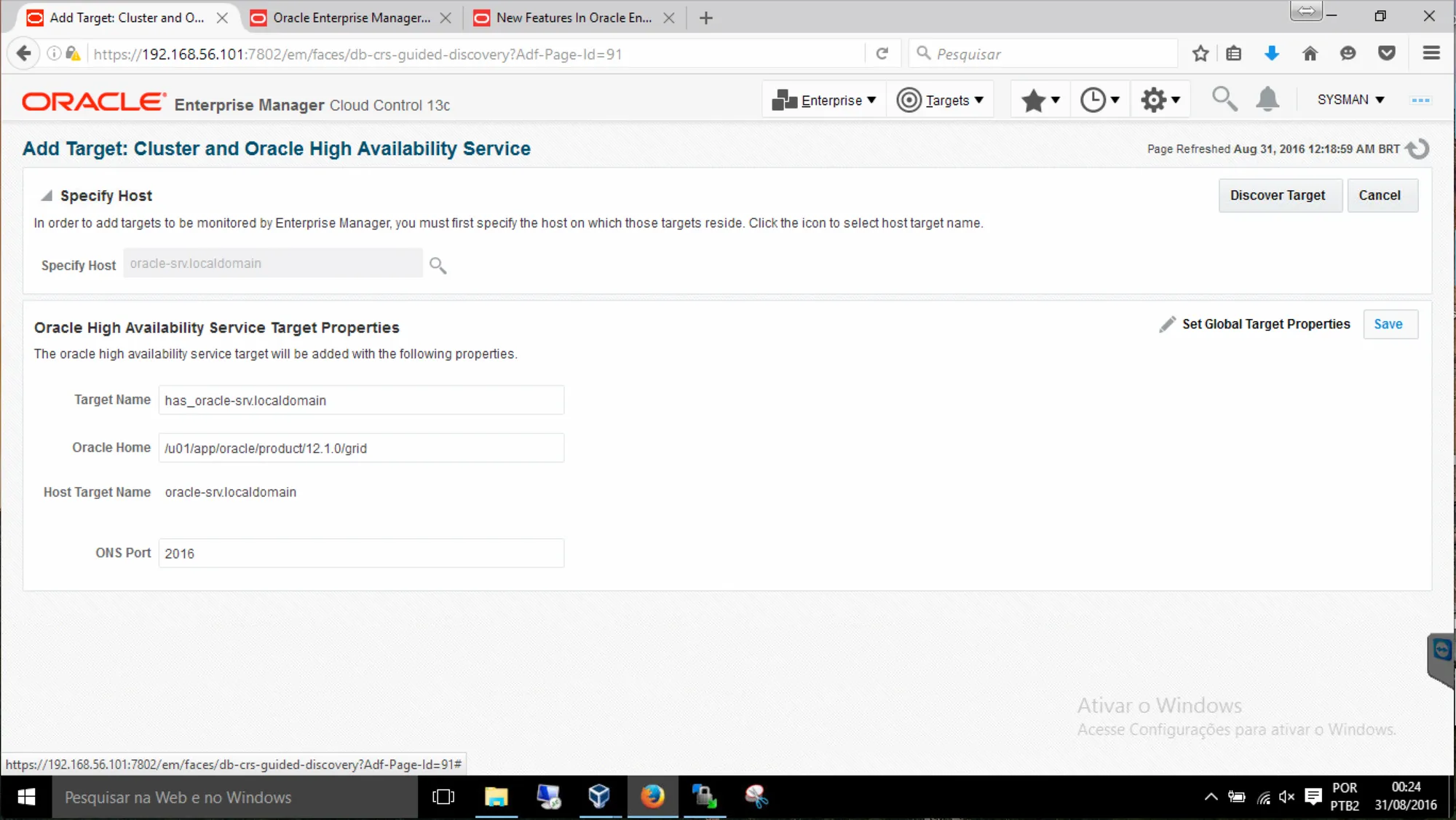
Then just click the magnifying glass and select your server, or search for its hostname.
Then click Discover Target so Cloud Control finds the possible targets on this server.
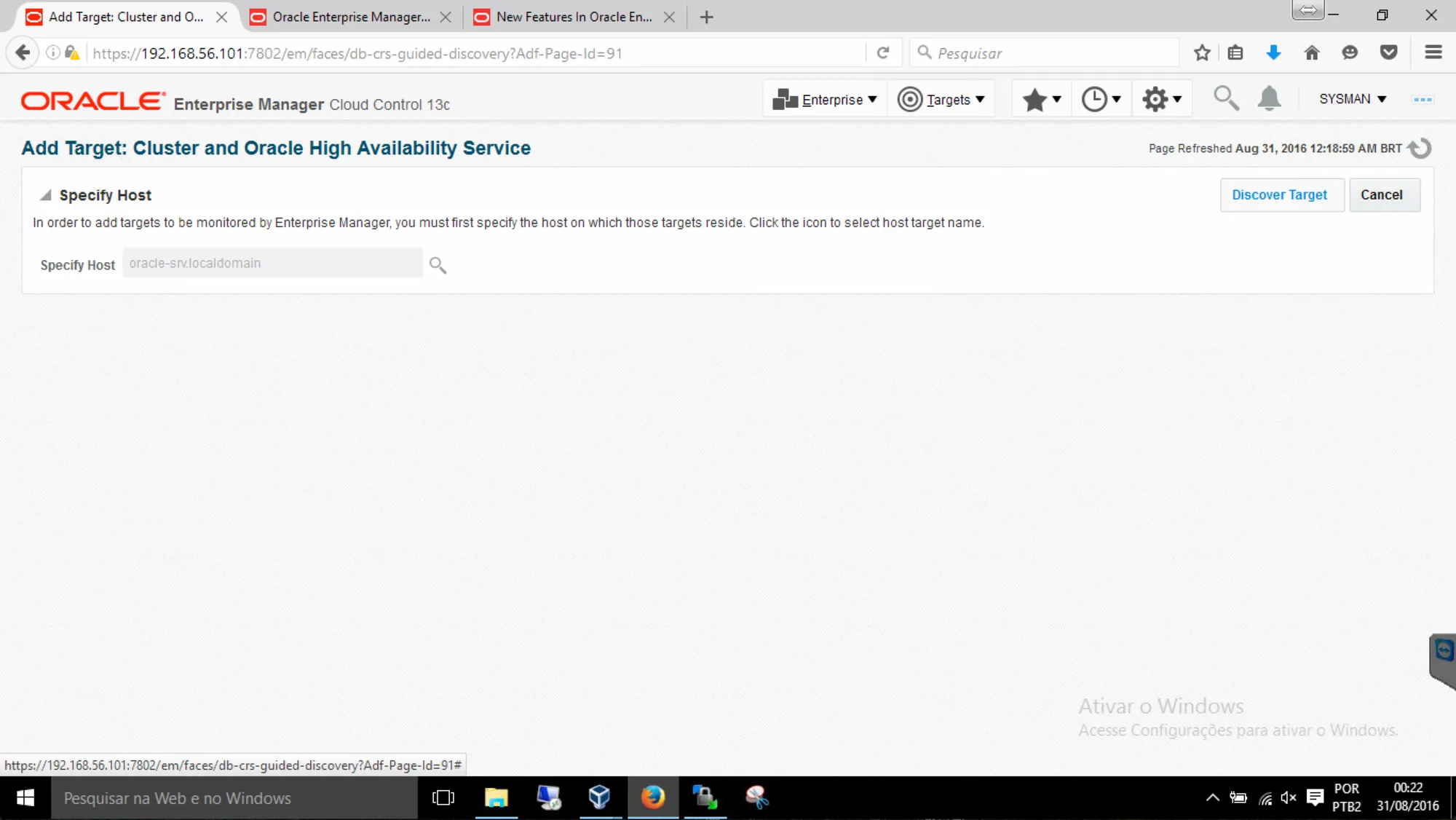
It should quickly find the High Availability Service. Just save the configuration.
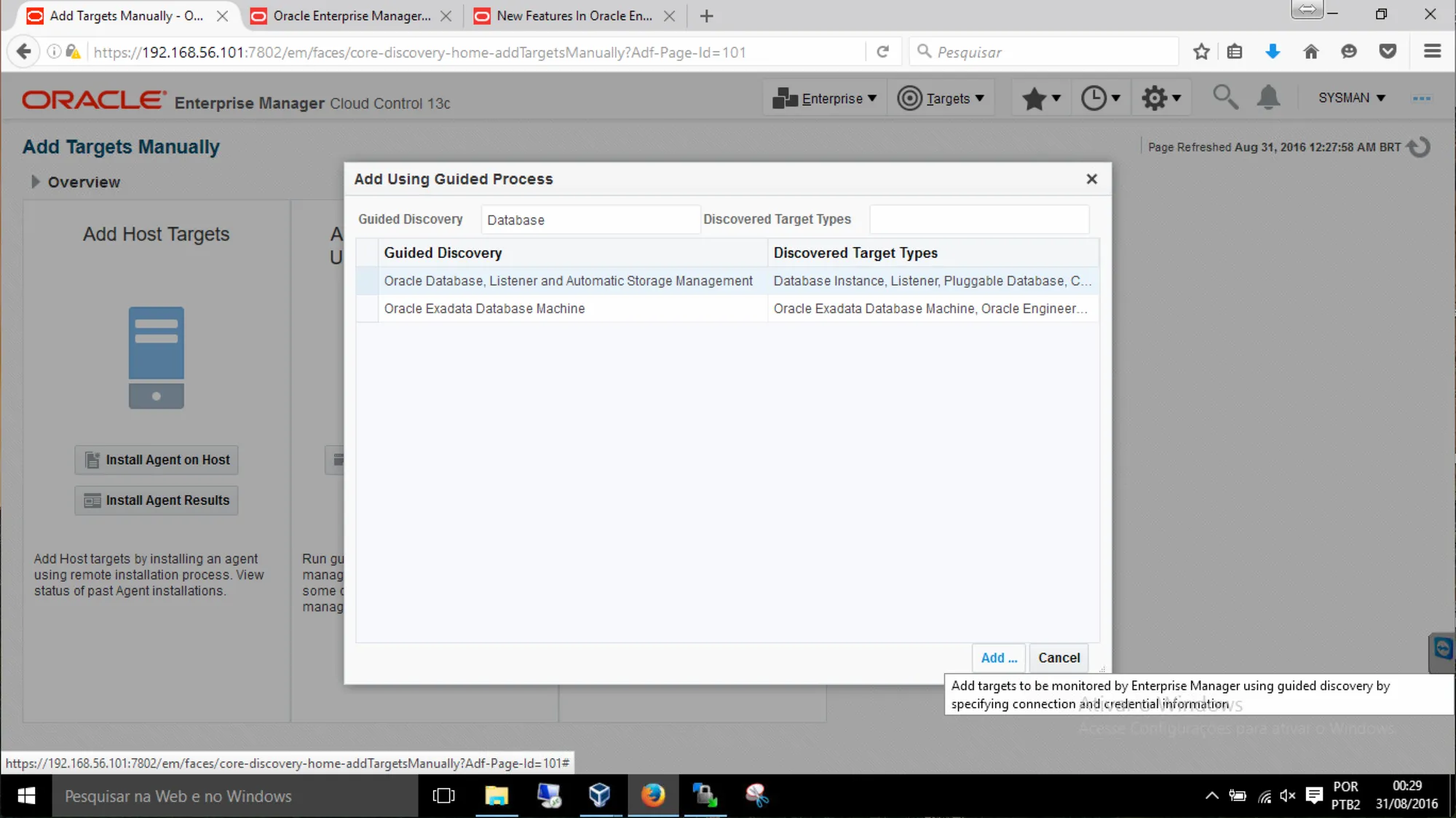
Now let’s do the same process for our Database. So I’ll use the string “Database” to filter and select the type I want to monitor.
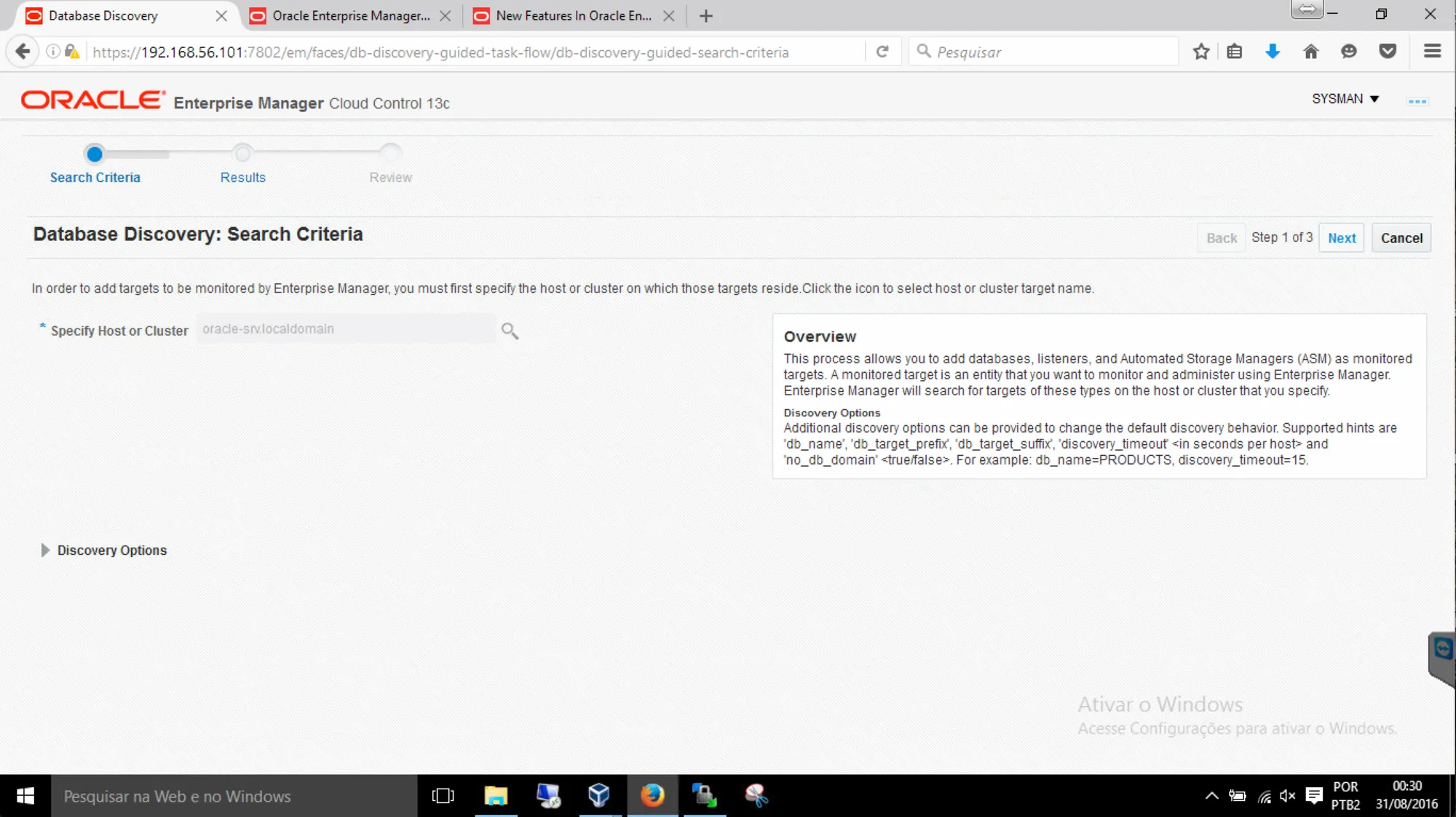
Select the server and click Next.
Check all the desired targets and provide the password of the DBSNMP user to monitor the database and of the ASMSNMP user to monitor ASM, then click Next.
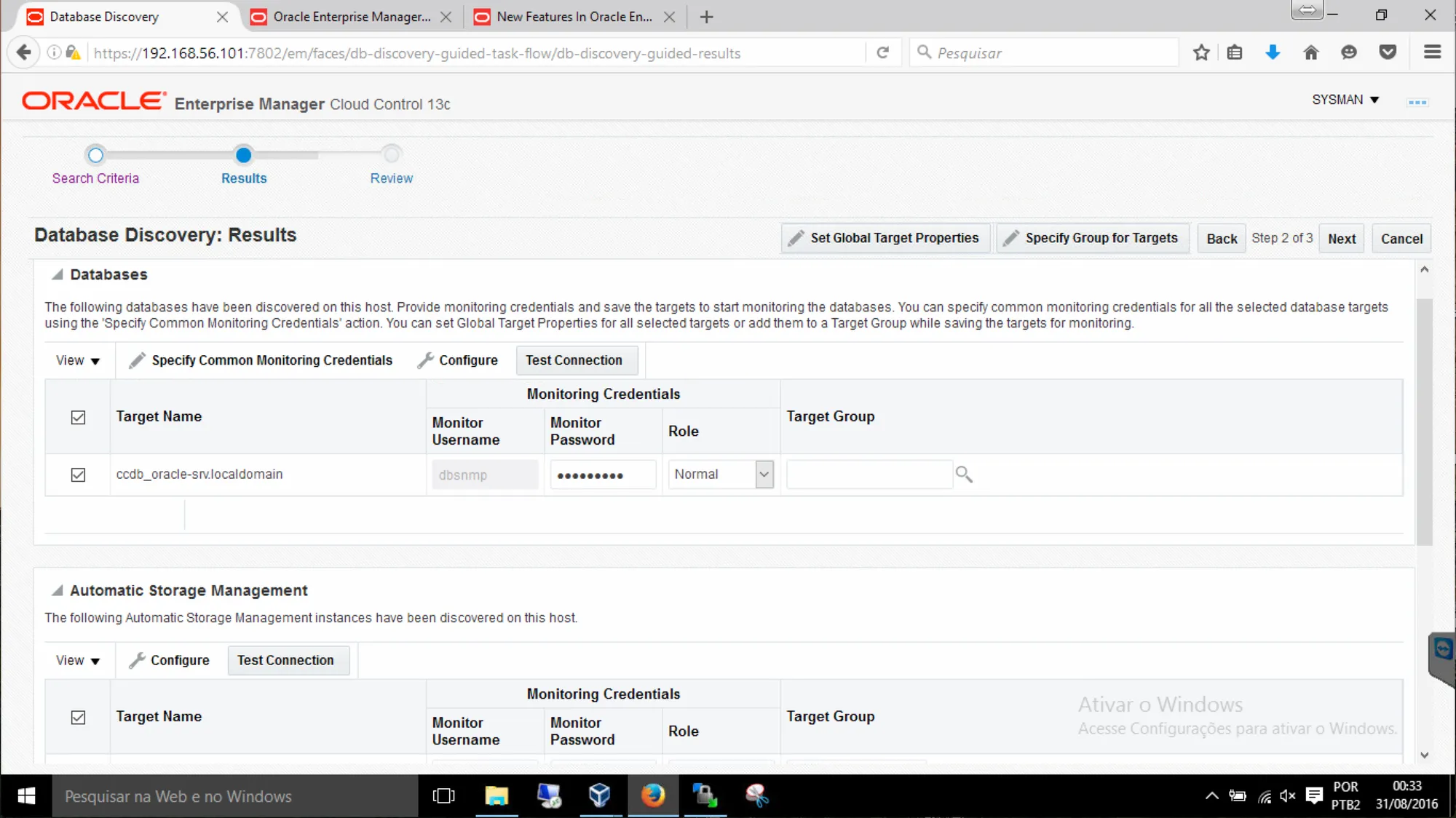
Don’t do what I did, unlock the user before doing this procedure. Hehehe. 😀
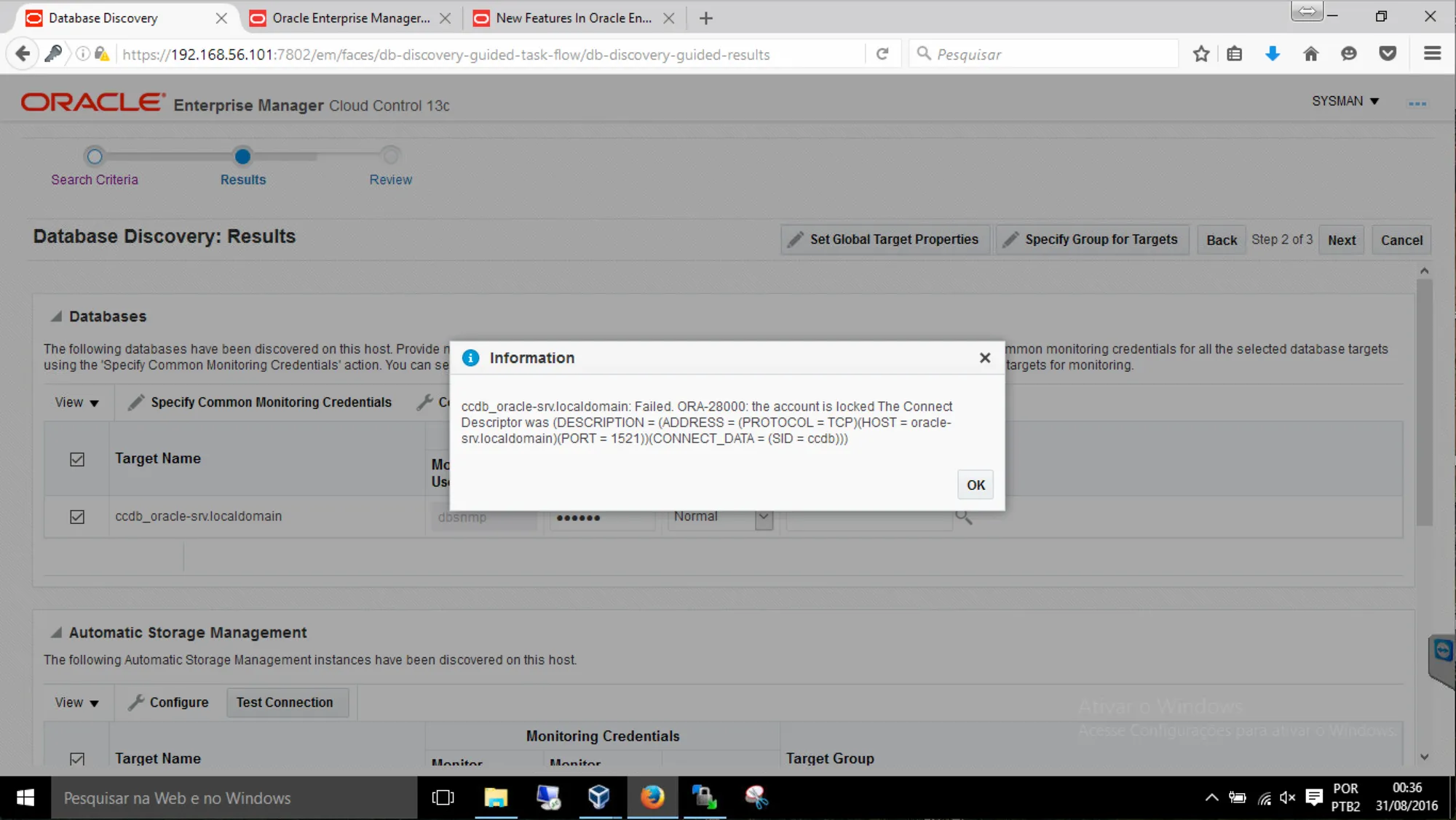
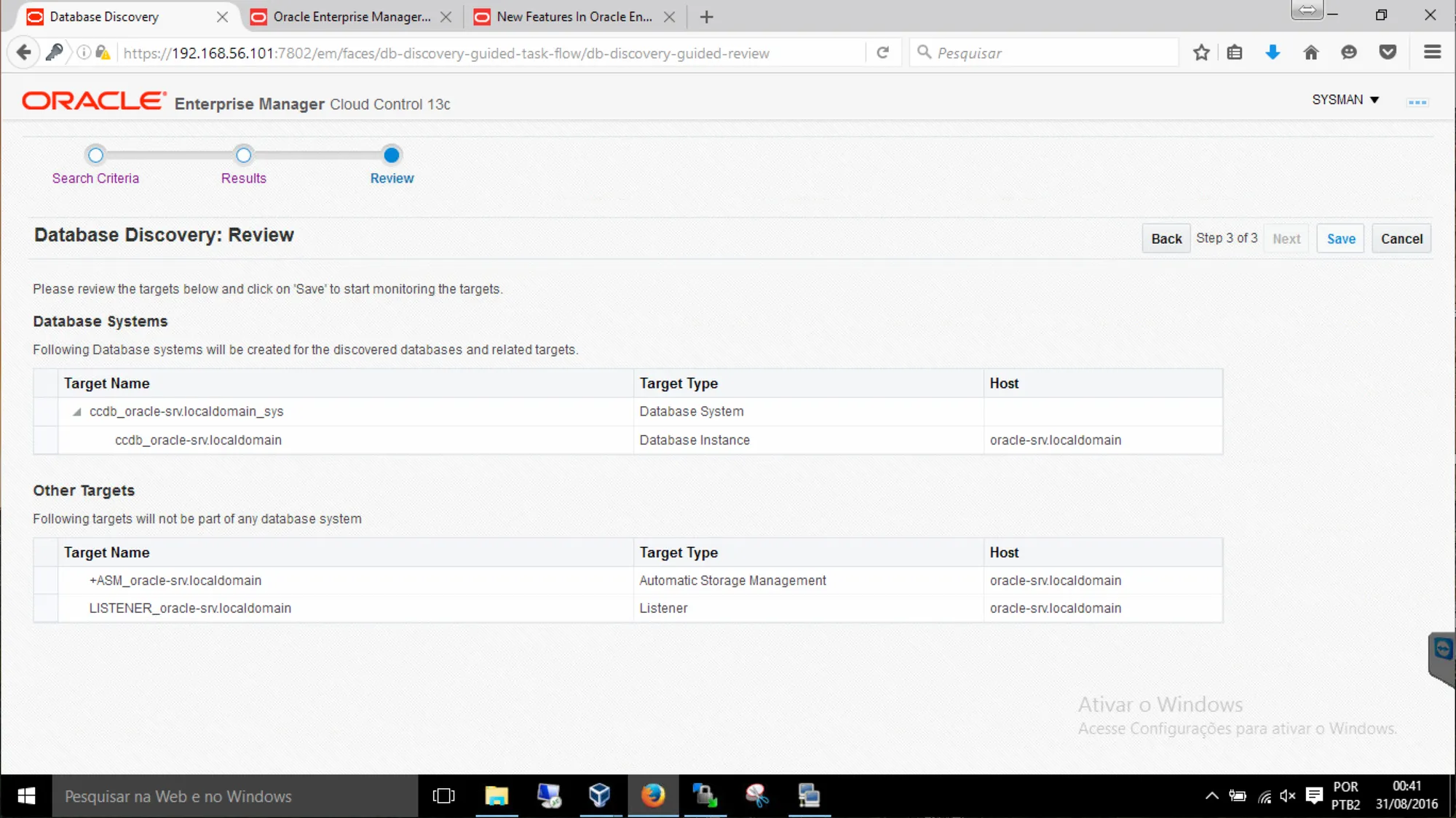
Review the information and click Save.
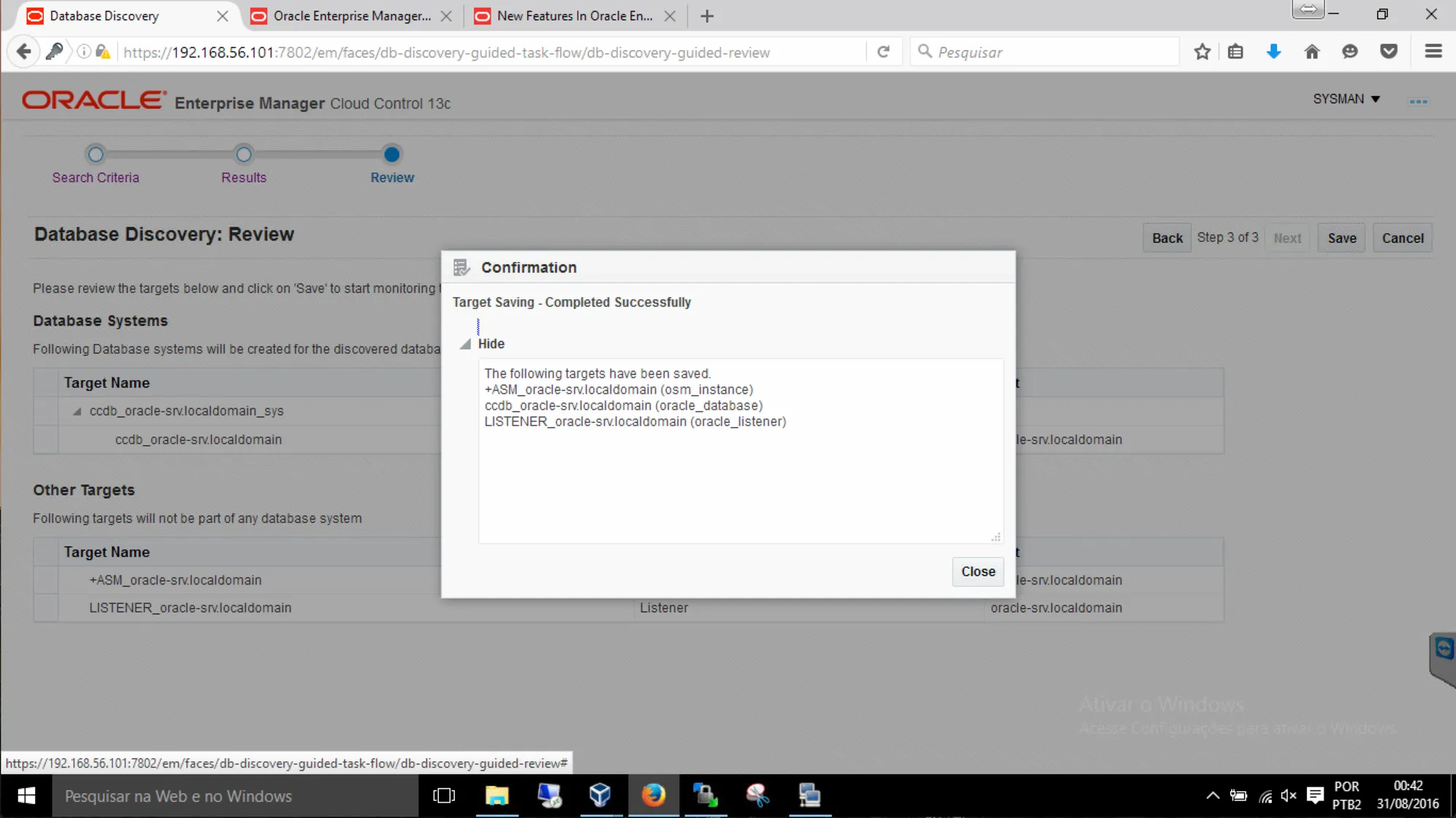
Done! Targets added successfully.
Now just navigate the Targets menu and find your targets.
I hope you like it and that it’s useful.
Regards,
Franky
Comments